Pull and push repository changes
Esta página aún no está disponible en tu idioma.
What you will do
Section titled “What you will do”Bring remote commits into a working copy and send your own commits back.
Before you start
Section titled “Before you start”- An active Pro subscription. Third-party AI subscriptions and API credits are separate.
- A working internet connection for the service or download used in this tutorial.
- An existing Git repository. Use the separate tutorial repository for practice.
Download the tutorial workspace
Where to start
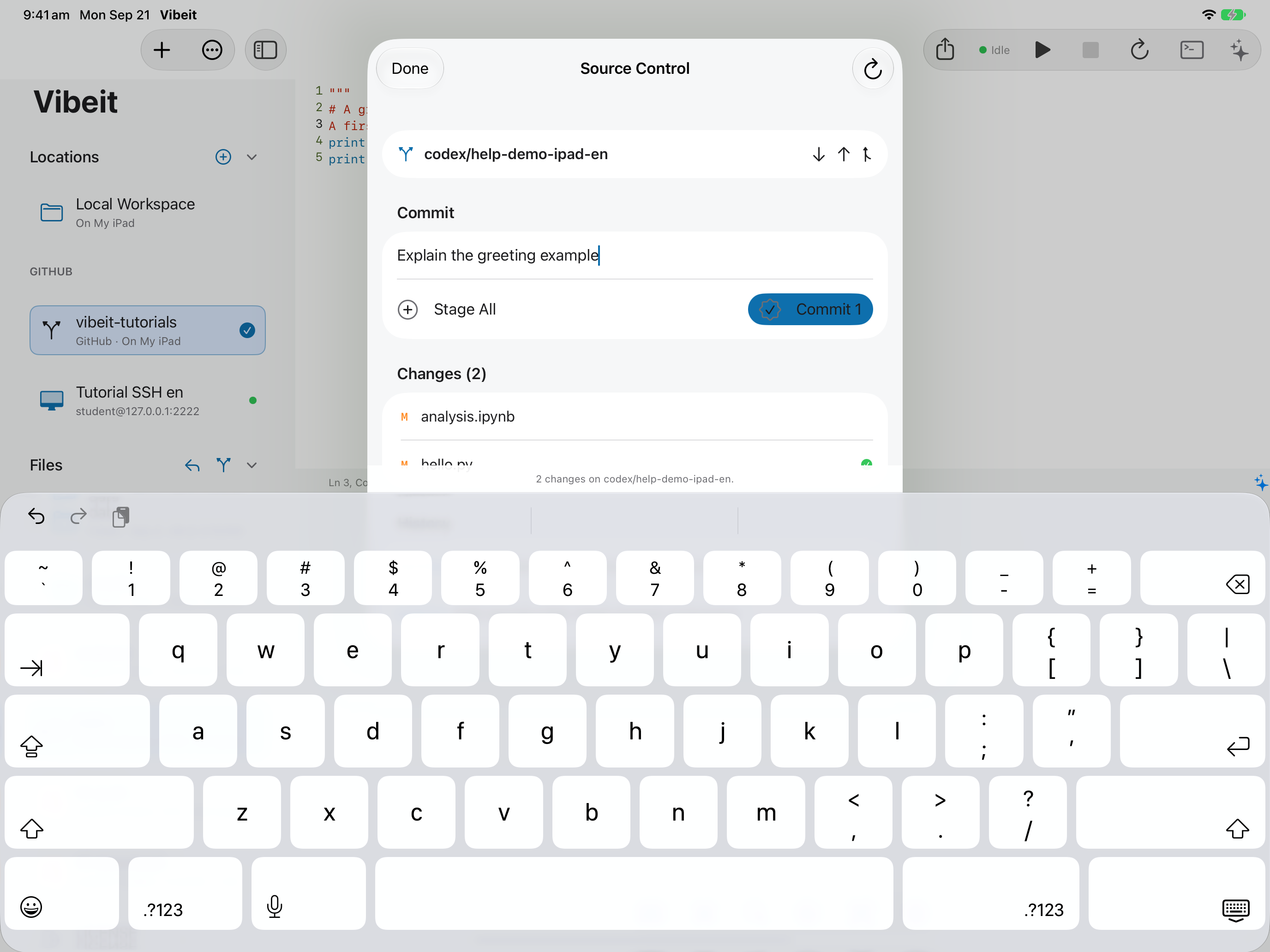
Section titled “Where to start”Source Control → Pull / Push
Follow the steps
Section titled “Follow the steps”Screenshot capture is in progress for this preview. This page is not approved for publication.
See the control up close
1
2
3
4
Check the result
Section titled “Check the result”Open the matching branch on GitHub and check the new commit message and file content. For remote workspaces, Git runs on the server and uses that server’s Git credentials.
If it does not work
Section titled “If it does not work”- Commit records local history; Push sends commits to the remote. Check which operation failed.
- For rejected pushes, inspect the remote changes and your permissions. Do not use a force push as a routine fix.
- If changes conflict, keep a copy and review the affected files before discarding anything.