Connect with an SSH private key
Questi contenuti non sono ancora disponibili nella tua lingua.
What you will do
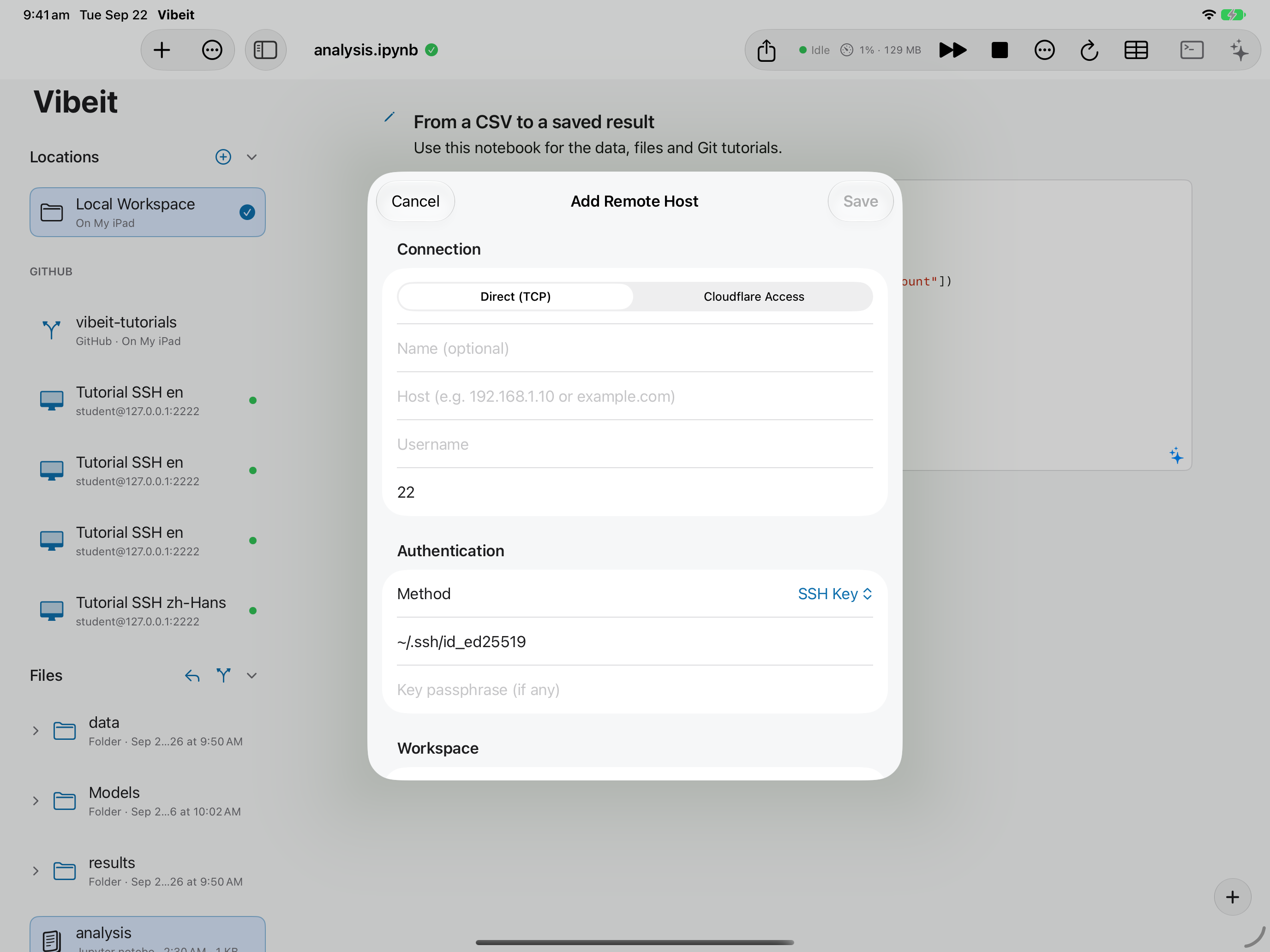
Section titled “What you will do”Configure a private key that matches a public key authorized on the server.
Before you start
Section titled “Before you start”- An active Pro subscription. Third-party AI subscriptions and API credits are separate.
- A working internet connection for the service or download used in this tutorial.
- A reachable SSH server, its hostname/port, a username, and the authentication method you are authorized to use.
Download the tutorial workspace
Where to start
Section titled “Where to start”Add or Edit Remote Host → Authentication
Follow the steps
Section titled “Follow the steps”Screenshot capture is in progress for this preview. This page is not approved for publication.
See the control up close
1
2
3
4
Check the result
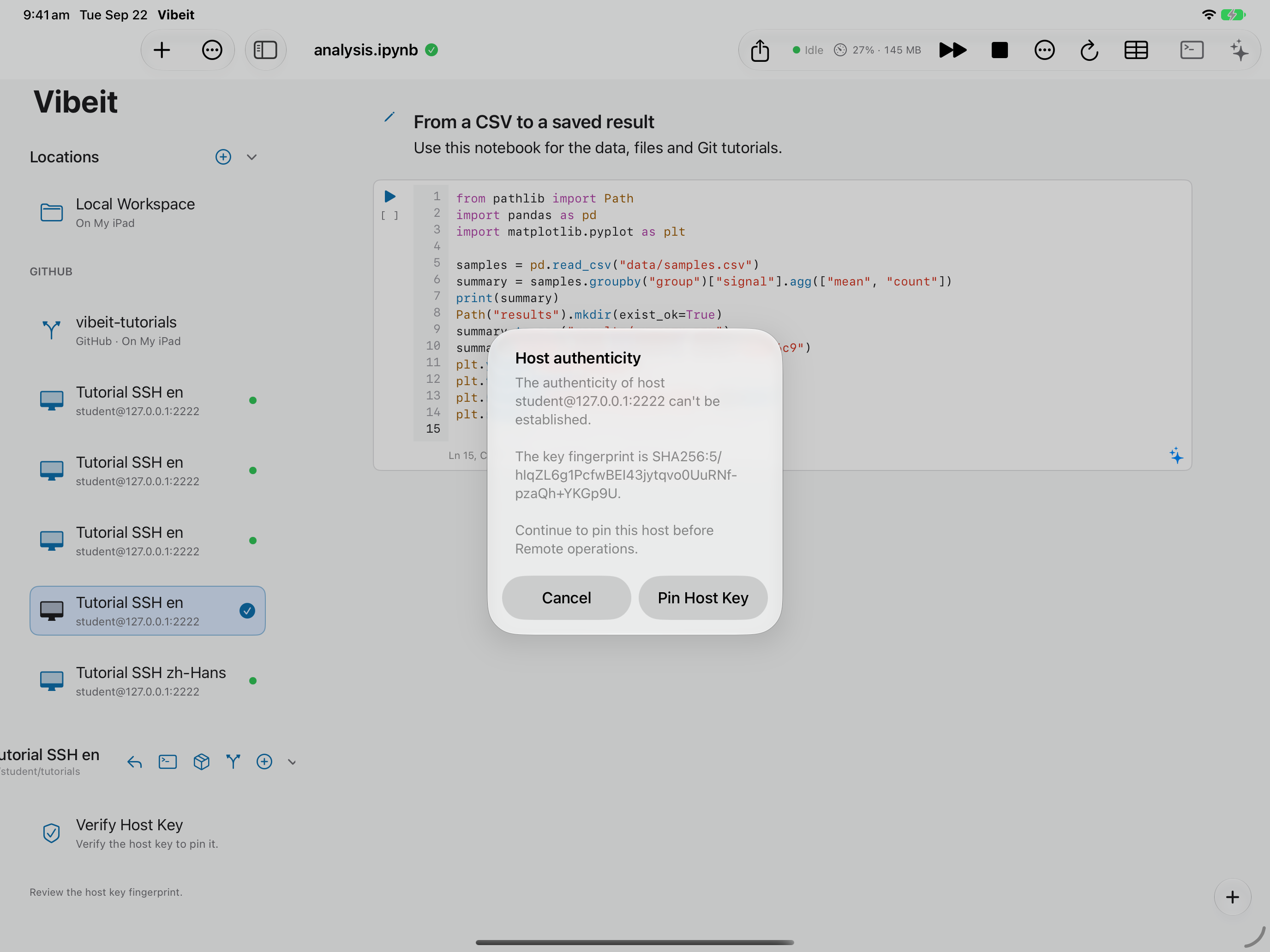
Section titled “Check the result”Verify the host fingerprint, then connect and open the remote directory. If rejected, check the username and matching authorized public key.
If it does not work
Section titled “If it does not work”- For a timeout, check the host, port, network route and server availability.
- For authentication failures, check the username and matching password or private key.
- If the host fingerprint changes, verify it through a trusted channel before replacing the saved fingerprint.