Configure Cloudflare Access
このコンテンツはまだ日本語訳がありません。
What you will do
Section titled “What you will do”Use an existing Cloudflare Access SSH application from Vibeit.
Before you start
Section titled “Before you start”- An active Pro subscription. Third-party AI subscriptions and API credits are separate.
- A working internet connection for the service or download used in this tutorial.
- A reachable SSH server, its hostname/port, a username, and the authentication method you are authorized to use.
Download the tutorial workspace
Where to start
Section titled “Where to start”Add Remote Host → Connection → Cloudflare Access
Follow the steps
Section titled “Follow the steps”Screenshot capture is in progress for this preview. This page is not approved for publication.
See the control up close
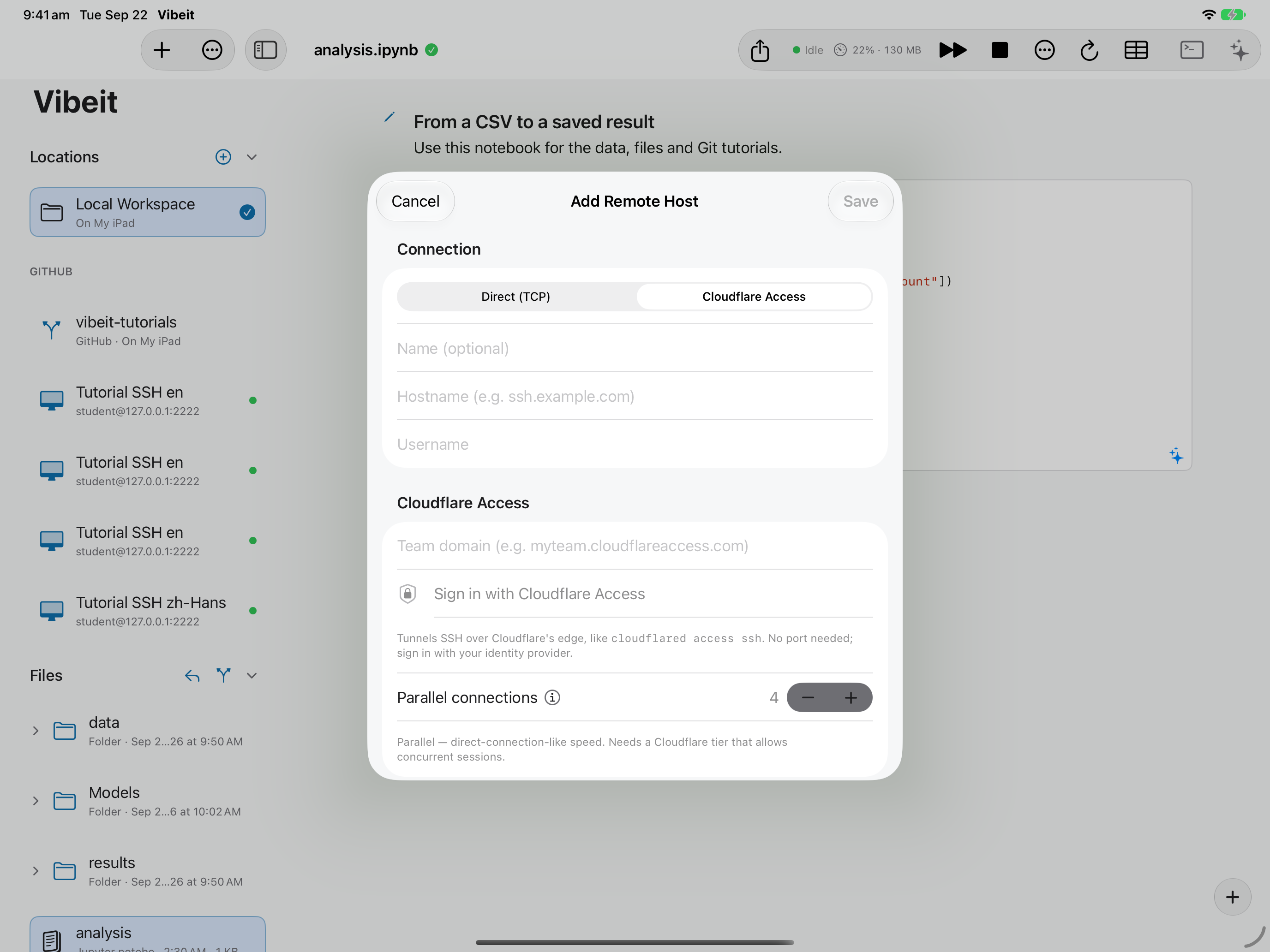
1
2
3
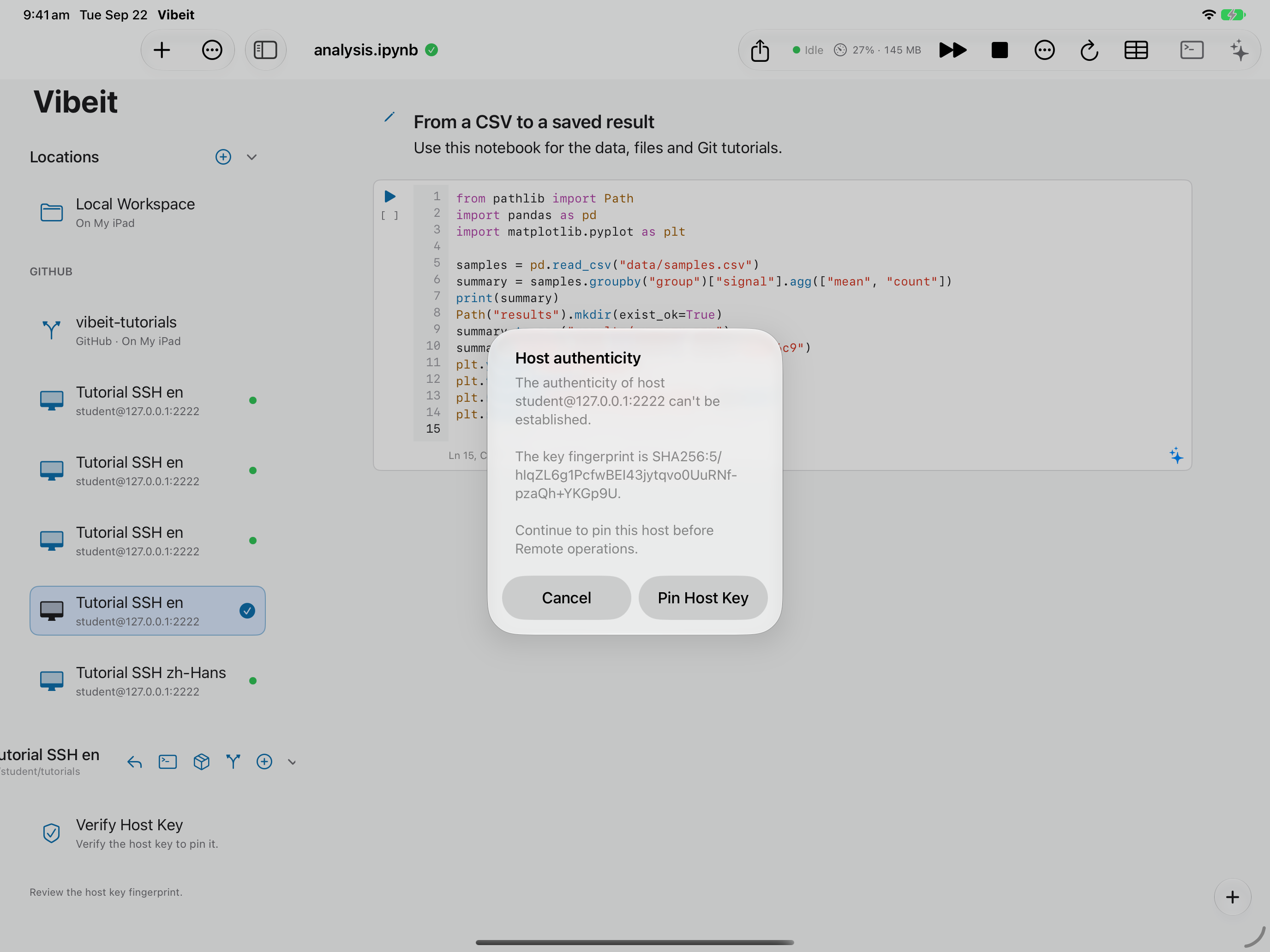
4
Check the result
Section titled “Check the result”Keep the default connection concurrency unless your setup supports more. Save, verify the host key and confirm a real file connection.
If it does not work
Section titled “If it does not work”- For a timeout, check the host, port, network route and server availability.
- For authentication failures, check the username and matching password or private key.
- If the host fingerprint changes, verify it through a trusted channel before replacing the saved fingerprint.